> For the complete documentation index, see [llms.txt](https://support.kea.ai/llms.txt). Markdown versions of documentation pages are available by appending `.md` to page URLs; this page is available as [Markdown](https://support.kea.ai/refunding-kea-pay-transactions.md).
# Refunding Kea Pay Transactions
\*\* For Toast and Clover POS Connections ONLY\*\*
*(Refunds through Square and Olo happen directly in your POS.)*
If you have set up your Stripe account to allow Kea Pay, refunds will have to be processed directly inside your Kea linked Stripe account.
1. Log into your Kea Portal at app.kea.ai
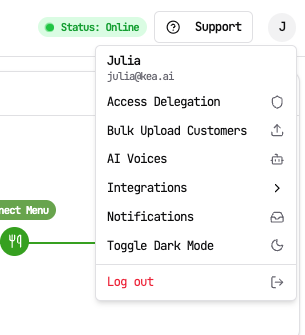
2. Select the icon in the top right hand corner to display your drop down selections
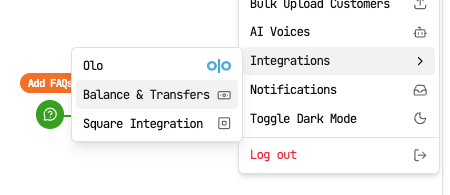
3. Select Integrations > Balance and Transfers
4. This will bring you to the your Stripe account.
5. Select Transactions from the left side menu
6. Sort through your recent Kea Pay transactions until you locate the correct order by date, time, and order total.
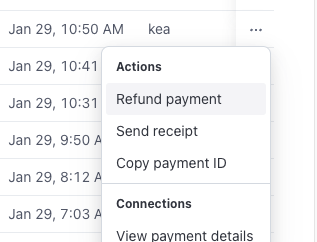
7. Hit the 3 dots on the very right hand side of that transaction's line item
8. Select Refund Payment
9. Select the reason for the refund, include a note if you'd like, and hit Refund inside the new pop up.
If you experience an issue in attempting the steps above, please [SUBMIT A TICKET HERE](https://docs.google.com/forms/d/e/1FAIpQLSc5XkWE-L8Vdmt6Gu2Cs59kAnfRnHi1E6BvAVgGdpivlCBcZA/viewform?usp=publish-editor) to our team. Fill out all the required fields and we will process the refund for you.
---
# Agent Instructions
This documentation is published with GitBook. GitBook is the documentation platform designed so that both humans and AI agents can read, navigate, and reason over technical content effectively. Learn more at gitbook.com.
## Querying This Documentation
If you need additional information that is not directly available in this page, you can query the documentation dynamically by asking a question.
Perform an HTTP GET request on the current page URL with the `ask` query parameter, and the optional `goal` query parameter:
```
GET https://support.kea.ai/refunding-kea-pay-transactions.md?ask=&goal=
```
`ask` is the immediate question: it should be specific, self-contained, and written in natural language.
`goal` is optional and describes the broader end goal you are ultimately trying to accomplish on behalf of the user. GitBook uses it to tailor the answer towards what is most useful for that goal.
The response will contain a direct answer to the question and relevant excerpts and sources from the documentation.
Use this mechanism when the answer is not explicitly present in the current page, you need clarification or additional context, or you want to retrieve related documentation sections.